[EDI] How do I set up my EDI MMU2-16LE monitor for an ATSI test?
Standard Test
- Enter MMU2-16LE Monitor data into Monitor Info (serial number, etc.)
- Set MMU2-16LE to ATSI test
- Goto Main screen push next key to “Menu” hit Select key.
- Move down to “Set / View Config:” hit Select key.
- Push next button until you get to “SETUP FOR ATSI TEST” hit select key.
- Insert “Regular Test Card” No Jumpers.
- Start test (make sure you Reset Monitor for 5 sec after setting switches).
- Tester will “beep” when complete.
Set Up ATSI Tester
- Open the ATSI software.
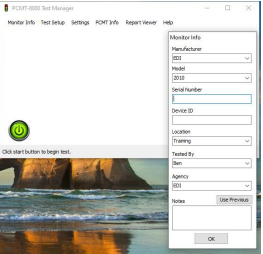
- On the software click on “Monitor Info” and fill it out. Hit OK.
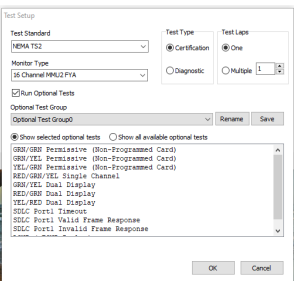
- Next go to “Test Setup” and select NEMA TS2Monitor Type 16 Channel (If MMU) or 16 Channel MMU2 FYA (if MMU2).
- Select “Test Type” Certification hit ok.
- Hit the Green button and follow instructions.
|
|
|
|
|
|
|
|
|