
[EDI] How do I set up my EDI NSM or SSM for an ATSI test?
This article discusses the setting up the NSM or SSM for an ATSI test.
|
|
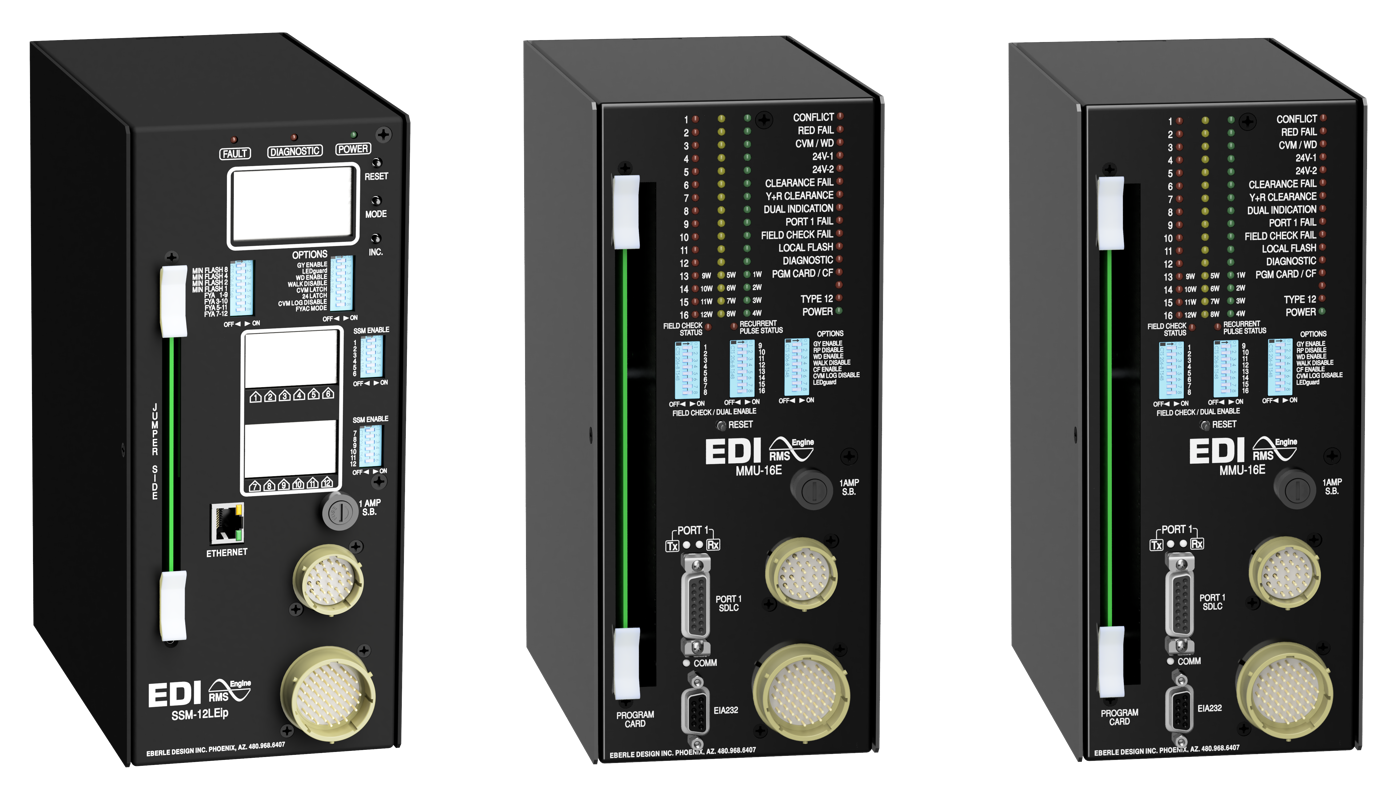
Setting up the NSM-3, 6 or 12 Monitor
- Min Flash dip switches 4, 2, and 1 should be on.
- Switch labeled 8 should be off.
- On the ATSI PCMT- 8000 Test Manager software settings, go to test settings and set the correct test standard(NEMA TS1) and monitor type (3, 6, 12, or 18).
Setting up the NSM-3E, 6E or 12E Monitor
- Min Flash dip switches 4, 2, and 1 should be on.
- Switch labeled 8 should be off.
- All “OPTIONS” switches should be all off.
- All SSM ENABLE switches should be on.
- On the ATSI PCMT- 8000 Test Manager software settings, go to test settings and set the correct test standard (NEMA TS1) and monitor type (3, 6, or 12).
Setting up the SSM-6LE, SSM 12LE or SSM 18LE Monitor
- The Flash dip switches 4, 2, and 1 should be on. Switch labeled 8 should be off.
- Both Dual SEL Switches is should be on.
- All “OPTIONS” switches should be all off.
- All SSM ENABLE switches should be on.
- On the ATSI PCMT- 8000 Test Manager software settings, go to test settings and set the correct test standard (NEMA TS1) and monitor type (3, 6, 12, or 18)
Setting up the SSM-6LE, 12LE, 16LE Monitor
- The Flash dip switches 4, 2, and 1 should be on.
- Switch labeled 8 should be off.
- All FYA switches should be off.
- All “OPTIONS” switches should be all off.
- All SSM ENABLE switches should be on.
- On the ATSI PCMT- 8000 Test Manager software settings, go to test settings and set the correct test standard (NEMA TS1) and monitor type (6, 12, or 16).
Setting up the MMU-16E Monitor
- All “OPTIONS” switches should be all off.
- All FIELD CHECK/DUAL ENABLE switches should be on.
- On the ATSI PCMT- 8000 Test Manager software settings, go to test settings and set the correct test standard (NEMA TS2) and monitor type (12, or 16).